
How to manage social media for multiple clients without sharing passwords


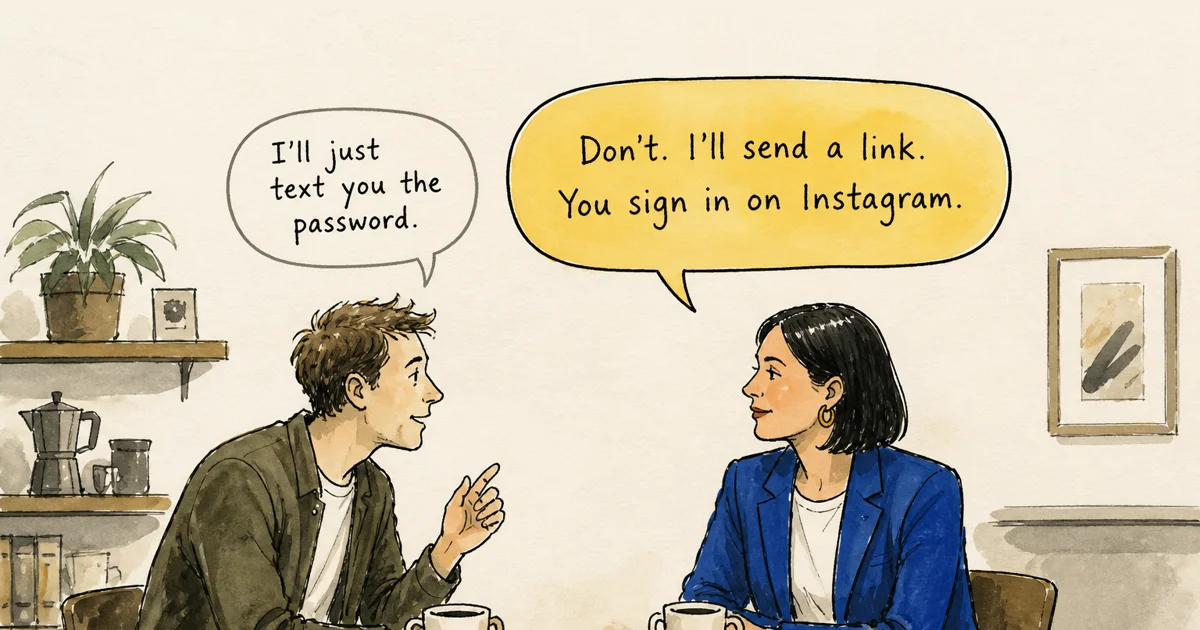
A client sends you their Instagram password. Another client's TikTok is already signed in on the same phone. The post is ready, but writing it is no longer the risky part. The risky part is knowing exactly whose account is about to receive it.
The clean way to manage social media for multiple clients is to give every client a deliberate boundary. Let them connect their own accounts through the social platform's official sign-in, save those accounts as a group, publish through the group, and filter the calendar, inbox and analytics back to that client. Use a separate workspace when the client needs access of their own.
I built this part of Get Posting around a blunt rule: the system should not depend on you remembering which identity, browser, phone or account you are currently using. Memory is a terrible permission system, especially on a Friday afternoon when three clients have posts due.
I would use the setup below, from the first access request to the day the work ends.
Decide whether the client needs an account group or a separate workspace
I would make this decision before connecting anything. It determines who can see the accounts, who pays for the workspace, and how cleanly the client can be separated later.
In Get Posting, a workspace owns its connected accounts, team, settings and subscription. An account group is a saved set of accounts inside that workspace. The two solve different problems.
Account groups



3 accounts in this group
Account groups organize the work. Workspace boundaries control access. A group narrows the composer, calendar, posts, inbox and analytics to a useful set of accounts. Another workspace member can still see beyond that group.
So if you keep North Street Coffee and West Coast Physio as two groups inside your own workspace, that works well for you and your internal team. It does not mean you can invite North Street Coffee into that workspace and trust the group to hide West Coast Physio. If a client needs dashboard access, give them a separate workspace that is safe for them to see in full.
This is also where I would make the pricing trade-off. A separate workspace has its own subscription. Grouping several clients inside one workspace costs less when the same operator or team is doing the work and the clients do not need to enter it. Separate workspaces cost more because each one is isolated with its own members, settings and billing.
My rule: If the client only needs to connect accounts, I would send a client
connection link and keep them out of the dashboard. If they need to work in the dashboard, I would give them a separate workspace.
Let the client connect their accounts without giving you the password
My first access question would be, “Which route lets you grant access without giving me the credential?”
Start with the social platform itself. Some platforms provide business roles, page administrators, members or partner access. When a native role covers everything you have been hired to do, use it. It is first-party, it is usually free, and the client can remove it later without changing their password.
Native access gets awkward when you are managing several platforms. The names, coverage and setup differ. A role may cover a Facebook Page but not solve the same problem on the client's other accounts. Even when the permissions are perfect, you are still left with separate publishing screens and separate views of what has been scheduled.
That is what the client connection link is for.
An owner or admin creates a link in Get Posting and sends it to the client. The link lasts for 24 hours and can be revoked before it is used. The client opens it, sees who requested the connection and which workspace it belongs to, then chooses the social platforms they want to connect.
They sign in directly with each platform. Their password stays with the platform. Get Posting never sees it, and neither do you. The platform returns authorized access that lets Get Posting publish on their behalf and, where the platform supports it, read analytics, comments and direct messages.
The client does not need a Get Posting account and does not join your workspace just to connect their socials.
This is the message I would send with the link:
I do not need your social media passwords. Open this link and connect the accounts you want me to manage. You will sign in directly with each social platform, so your password stays with them and is never sent to me. The link expires in 24 hours. If anything looks wrong, stop and message me rather than continuing.
A connection link is still an authorization request. I would ask the client to check the requester, workspace and permissions instead of treating every link in their inbox as harmless.
Official authorization does not make an account impossible to compromise or replace two-factor authentication, good recovery details or the platform's own security controls. It removes a dangerous part of the relationship. You no longer log in as the client from your own phones and laptops, and their reusable password is not sitting in your messages or password manager.
You also stop asking for a fresh two-factor code whenever a login expires. The client connects once through the supported flow, then the platform manages that authorization as an integration instead of treating you like another person trying to log in as them.
Group the accounts before you schedule the first post
Once the accounts appear, I would group them immediately. Waiting until there are thirty profiles in the list means you have already memorized your way around the mess.
For the running example, imagine you manage these two fictional clients:
- North Street Coffee: Instagram, Facebook and TikTok
- West Coast Physio: Instagram, Facebook and LinkedIn
Create one account group for each client and use the client's name as the group name. The boring name is the right name. You should not need to decode “Group B” or remember that the green emoji means physio while you are scheduling something under pressure.
From that point on, you choose North Street Coffee as a unit. The composer selects its Instagram, Facebook and TikTok accounts together. The calendar can show only North Street Coffee. The posts view, inbox and analytics can use the same group.
The saved clicks are minor. I care about the group because the thing you select now matches the thing you are thinking about.
Without a group, your internal sentence is “I am posting for North Street Coffee,” while the interface asks you to independently select three profiles from a list containing both clients. You have to translate one mental object into three account decisions every time. With a group, the thought and the control are the same thing.
The wrong-account mistake becomes less likely because the step that creates it has mostly disappeared.
Mostly is deliberate. A group cannot stop you choosing the wrong group. It cannot notice that a caption sounds like the physio client rather than the coffee client. It cannot make bad work good. It removes one fragile manual step and makes the remaining decision much easier to inspect.
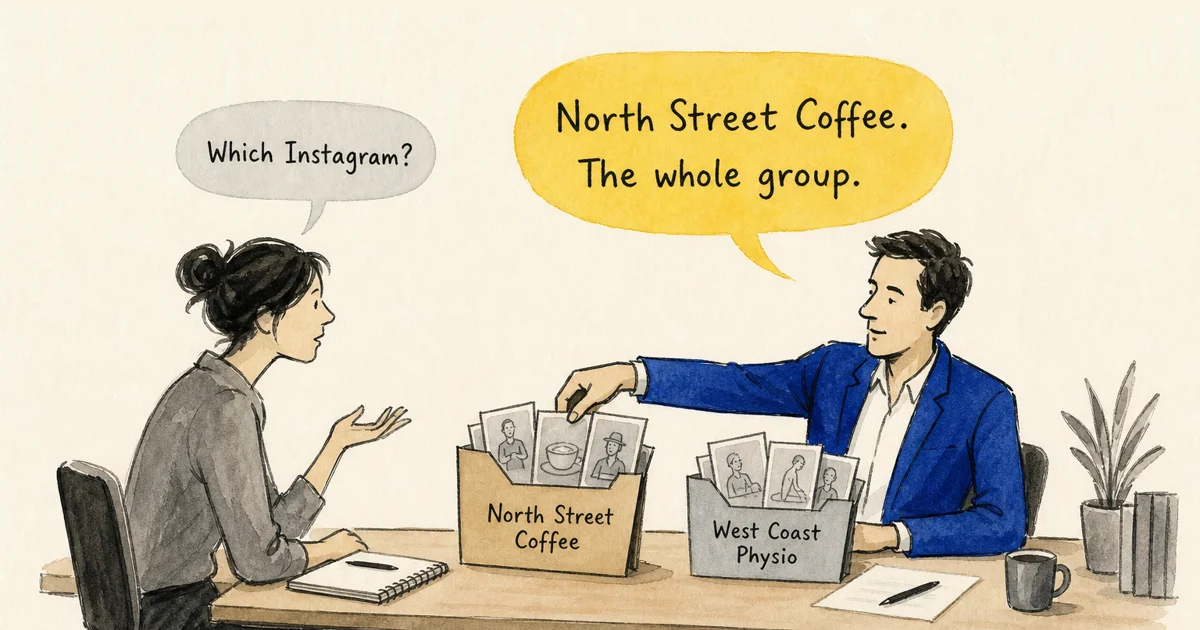
Groups also work for structures other than clients. A business with Australian and UK accounts could group by market. A company with several brands could group by brand. I would name the group after the unit I actually plan and report on.
Give people one calendar, but only invite the people who need it
Connecting an account and joining a workspace are separate actions.
I separated those actions deliberately. Plenty of clients only need to authorize their accounts and receive an update each month. Making them create another account, learn another dashboard and join another tool adds work without giving them anything useful.
Use the connection link for those clients. They authorize the accounts, then leave. You and your team work from the shared calendar.
Invite somebody into the workspace when they genuinely need to draft, schedule, check the calendar or work beside you. That might be another social media manager, a VA, a video editor who also schedules clips, or a client who wants to work directly in the system.
The client case needs care. Membership is workspace-wide. If your workspace contains several clients as account groups, do not invite one client and assume their group limits what they can see. Put that client in a separate workspace instead.
One calendar solves a different problem from password sharing. Passwordless access answers “how do I get in?” The calendar answers “what has everyone else already done?”
Two people with separate platform apps can both have legitimate access and still publish the same post twice. One thinks Tuesday is covered. The other sees nothing on their own screen, schedules the post, and the client gets two copies. Both people had the right permissions. They were missing a shared view of the schedule.
In one workspace, everyone is looking at the same scheduled work. You can filter the calendar to North Street Coffee before a call, then switch to West Coast Physio without logging into either client's social accounts.

The shared calendar provides visibility, not an enforced approval workflow. A client can see what is scheduled if they belong to that workspace, but Get Posting does not currently require their formal approval before somebody publishes. If sign-off is contractual, I would keep that process outside the tool or use a platform built around approval gates.
Publish to the client group, then customize each platform where it matters
I want the day-to-day workflow to feel almost boring once the setup is right.
Start one composition. Select North Street Coffee. The group brings in the client's Instagram, Facebook and TikTok accounts. Write the shared idea once, then change the parts each platform actually needs.
The TikTok version may need different copy from Facebook. Instagram may need a different first line. One platform may accept a setting or media combination another does not. Keeping the composition together does not mean forcing every platform to receive an identical post.
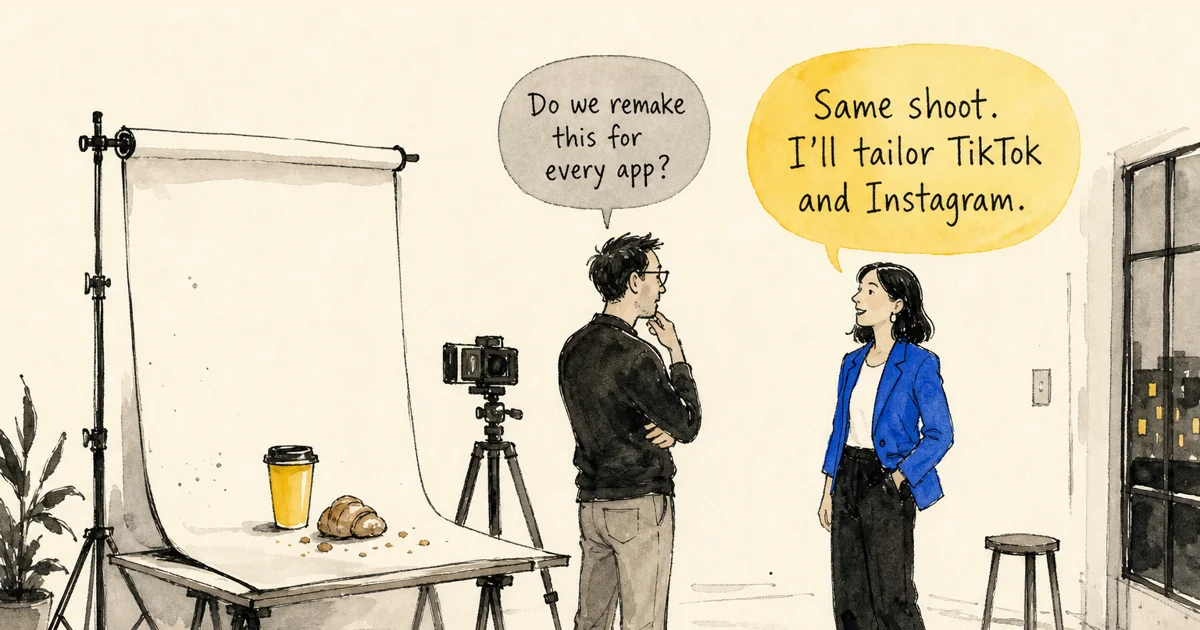
Get Posting checks each selected target against that platform's publishing rules before it goes onto the calendar. That catches known problems while you are still looking at the post, rather than leaving you to discover later that one target could never accept it.
Validation cannot guarantee that every platform will publish successfully. Accounts disconnect, platforms reject requests and services have outages. What I can promise is narrower: Get Posting surfaces known text, media and setting problems before scheduling, then keeps the delivery state visible afterwards. The point is not to predict a platform's reach. It is to catch known mismatches before scheduling and make the delivery state easy to check afterwards.
Before you schedule, check five things:
- Client group: Is the selected group the client named in the content?
- Accounts: Does the displayed account count and platform list look right?
- Platform versions: Did each platform get the copy, media and settings it actually needs?
- Preview: Does the post look like the version the client expects to see?
- Schedule: Is the date and time right for this client and campaign?
That is short enough that I would use it. A twenty-step publishing checklist lasts three days before it is quietly abandoned. These five checks cover the places where a costly mistake can still enter after the account group has done its job.
Now do the same for West Coast Physio. Select that group and the composer changes to its Instagram, Facebook and LinkedIn accounts. You are not signing out of North Street Coffee, opening another browser profile or hoping the avatar in the corner belongs to the right person. The boundary is visible in the work itself.
Saving a few minutes is nice. Making the target obvious is the part I care about, because that protects the client relationship.
Keep comments and messages inside the same client view
Publishing is only half of social media management. Once the post is live, somebody has to notice the comment, answer the question and avoid replying twice.
A shared inbox puts supported comments and direct messages from connected accounts in one place. Account groups can narrow that view back to the client, just as they do in the calendar and composer.
For North Street Coffee, that means you can open the group and work through its conversations without searching past the physio client's messages. If another team member is replying too, both of you are working against the same inbox state rather than two separate phones.
Every message from every social network will not always be available. Platforms expose different conversation types and permissions. I designed the interface to show what is collecting instead of suggesting that an empty inbox proves nobody contacted the client.
The system also cannot decide the reply. I only want to automate the admin here: one place to see the conversation, a shared state, and less app switching. The client's tone, judgment and escalation rules still belong to the people doing the work.
Filter analytics back to one client before you report anything
A combined analytics view is useful when every account belongs to the same business. It is useless in a client report if half the result belongs to somebody else.
Use the same account group again. Select North Street Coffee on the Analytics page and the report resolves against the accounts in that group. You can look at available follower movement, views, impressions, engagements, performance over time and top posts without West Coast Physio being mixed into the result.
The group does not magically make different platforms agree with each other. Instagram, TikTok, LinkedIn and Facebook do not use every metric in the same way. A combined total is a count across accounts, not a count of unique people. One person seeing a post on three platforms can contribute to three platform totals. And if a client report is turning into a contest for the biggest number, views are not the whole story.
There are three labels I think every combined analytics product should be willing to show:
- totals across accounts are not unique people;
- only the data each platform makes available can be included; and
- missing data is not the same thing as a measured zero.
Zero engagements says the platform measured none. Not available says the platform did not give you a number you can use. Turning the second into the first makes a clean chart and a bad report.
Follower history also starts after an account is connected. Get Posting can show the current count, then build the daily history forward. It cannot reconstruct a daily series that was never collected. Tell a new client this in the first month, before they ask why the growth chart does not extend back through the previous year.
I would keep the client update to three parts:
- What went out: The number of posts, the platforms used, and links to two or three worth looking at.
- What happened: A small number of available metrics, the strongest posts, and the direction of the account over the period. Explain what each number means instead of dropping a chart into a document and hoping it speaks.
- What changes next: One or two decisions you are making because of what you saw. More of a format that carried the month. Less of something the audience ignored. A change to the platform mix or posting rhythm.
The third part is the work the client is paying you for. Software can collect and organize the available numbers. Your judgment is what stops the report from becoming generic commentary.
Get Posting gives you a reliable client-level view from which to write the update. You still have to create and send the report. If a branded presentation needs to arrive automatically in every client's inbox, I would use a reporting product built for that job.
If the client asks how much revenue social produced, I would leave the social dashboard. That connection needs the client's own website analytics, booking system, checkout data or tagged links. A follower chart cannot prove a sale it cannot see.
Offboard through every route that granted access
I think a good access system should be designed backwards from the day the work ends.
Write down how each route will be closed while you still remember how it was opened. The offboarding changes depending on the structure you chose.
If the client has their own workspace. Remove your membership, or have the client remove you and any teammates who worked on the account. The connected accounts remain in the client's workspace.
If the client is an account group inside your workspace. Remove the group after you no longer need it, but remember that deleting a group only removes the grouping. Disconnect or remove the client's social accounts from your workspace as well. The client can also review the social platform's connected or authorized apps and revoke the scheduler connection there.
If you were granted a native platform role. Remove yourself from that role, or ask the client to remove you. Check the page, business account and partner access separately where the platform treats them as separate grants.
If you were given a password anyway. Ask the client to change it and review two-factor authentication and recovery details. Then delete every copy you hold, including the original message, password manager entry, note and shared document.
One removal does not close every route. Leaving a Get Posting workspace does not remove a role you were granted directly on LinkedIn. Revoking a native role does not remove an authorized app connection. Deleting an account group does not disconnect the accounts inside it.
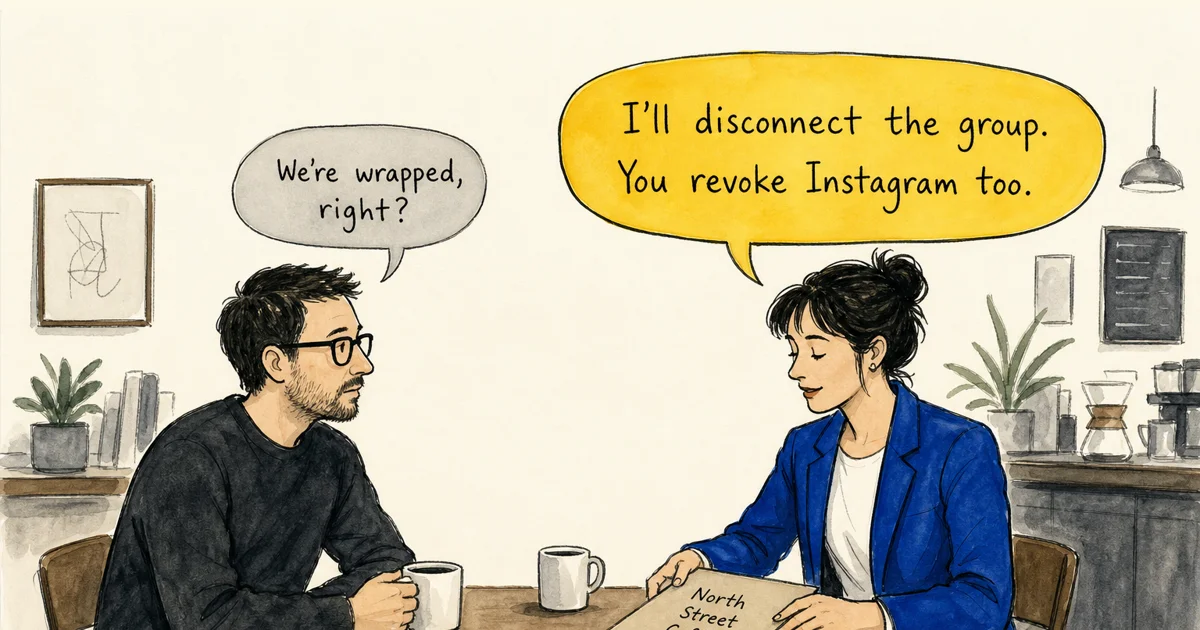
Use this checklist:
- remove every freelancer, teammate or client member who no longer needs the workspace;
- disconnect the client's accounts from any workspace they should no longer belong to;
- remove native page, business and partner roles on each platform;
- review connected and authorized apps on each social platform;
- change any password that was shared and review two-factor authentication;
- confirm the client's recovery email and phone number still belong to them;
- send the final account inventory and report through the agreed client channel;
- send a short confirmation naming what was removed and what remains with the client.
Your contract may require more than this checklist. Operationally, I want every route in to have a named route out.
If your agency needs more control, I want to hear how you work
I have built the foundation for managing client work into Get Posting: separate workspaces, team invitations, account groups, shared publishing, a shared inbox and analytics, and connection links that let clients grant access without joining the workspace themselves.
For some freelancers, teams and agencies, that will replace the messy mix of passwords, browser profiles, spreadsheets and crossed fingers. Others will need a formal approval chain, finer permissions, white-label client views or more involved reporting. Get Posting is not there yet.
I do not want to guess my way into a huge permission system based on how I think an agency might work. The useful version depends on the real details: who needs to see which clients, who has to approve a post, what a client should be able to change, and what has to appear in a report.
So if the rest of Get Posting fits and one missing control is holding you back, talk to me. We can look at the exact workflow, see what the current setup can already cover, and identify what genuinely needs to be added. I cannot promise that every request will become a feature immediately, but those conversations are what will shape the next layer of permissions, approvals and reporting.
If a client password is sitting in your inbox today, start there. Send back the message above, create a connection link, and make one deliberate decision about whether that client belongs in a group or a workspace of their own. Then set up a second client and schedule one composition to the first group.
I would test this with one client before moving every account. If the client boundary is obvious, the account list is right, and nobody needed to exchange a password, the system is doing its job.
Happy posting.